BarBeatCue

Features

Everything BarBeatCue does, by where you meet it — the Mac, the band's screens, the rest of the rig, the show file.

The Mac

The setlist strip: five songs as blocks with their parts, chain arrows where one runs into the next, the song playing outlined

The setlist

The show as a strip of songs with their parts and lengths. Drag to reorder; chain a song into the next with no gap, crossfade it, or stop between them — one press plays a whole medley.

More

At End: Continue into Next — At the song's end the next song starts on the very next sample — gapless, the pulse never stops (a count-in between songs clicks first when set). On one of several selected songs: every selected song.

Crossfade Setlist ▸ Crossfade — On a song that goes on into another: the next song starts that many bars or beats before this song's end — or where the part you pick starts — with no count-in, and this song fades out to its end under it. None is the gapless cut. Also the length a live launch (Next Song while playing) into that song crossfades over. On one of several selected songs: every selected song.

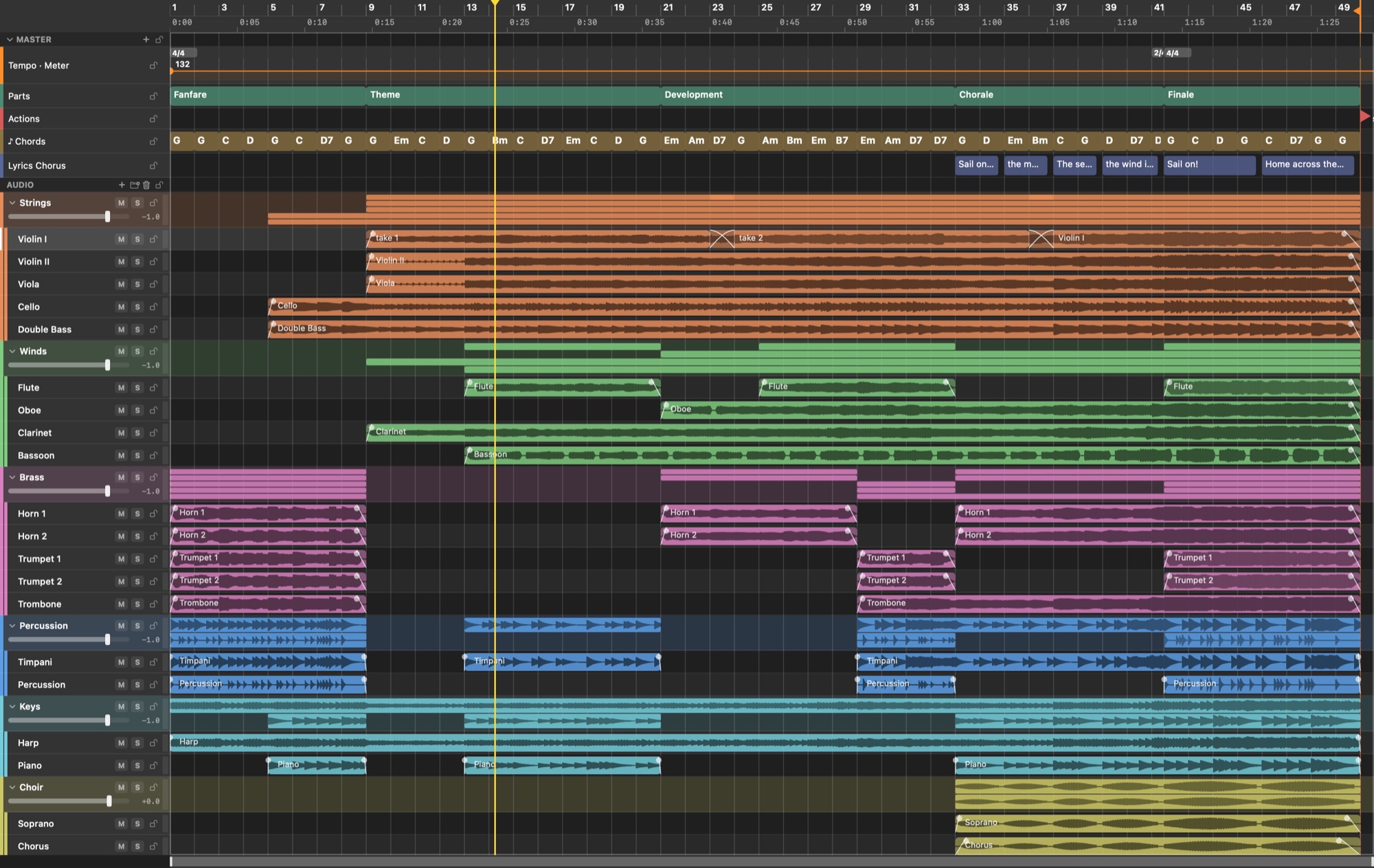
The arrange on an orchestral show: tempo, parts, actions, chords and lyrics lanes over the groups of stems, every entrance its own region, fades at the edges, the first violins' takes crossfaded

The arrange

A DAW's arrange — tracks and groups, regions with fades and crossfades, the tempo and signature map, smart snap, Audio Unit plug-ins, sends, any output pair — with what no DAW has on the same timeline: parts, chords, lyrics and actions as lanes. Tap the lyrics into place while the song plays, play the chords in from a keyboard, find a song's lyrics online, detect the tempo of a take recorded without a click, and play any song at another tempo or in another key with its stems conformed.

More

Tap to Place Song ▸ Lanes ▸ Tap to Place · ⇧⇥ — A mode: while it is on (the edit bar's hand lit red), Tab puts the selected chord, lyric line or part where you hear it and selects the next; the one Tab places next has a red ring. Off, Tab does nothing to the song. Off at launch and on stage.

Record Chords from MIDI Song ▸ Lanes ▸ Record Chords from MIDI — While on (the edit bar's keys lit red), a chord played on the keyboard of Settings › MIDI lands where its first note sounded (a selected chord is renamed instead), and the keys sound as an electric piano.

Find Lyrics Online Song ▸ Lanes ▸ Find Lyrics Online… — Searches LRCLIB for the song's lyrics; a synced match lands at its times.

Detect Tempo Song ▸ Tempo & Key ▸ Detect Tempo… · ⇧⌘T — Listens to a track (a right-click: that track or group; else the selected rows, else the drums) and makes the tempo map follow it: a tempo a bar, bar 1 on the music's first downbeat with count-in bars before it. The sheet offers the double or the half, moves bar 1 a beat or a bar, plays eight beats with the click to check, and keeps the parts, chords and lyrics at their times or their bars. Several tracks are heard together; a tempo that drifts ramps bar to bar, a tempo that jumps steps.

Follows Tempo — On by default. Off: the track keeps its own speed when the song is played at another tempo (its regions still start on their bars). On one of several selected rows, every selected row; on a group, its tracks.

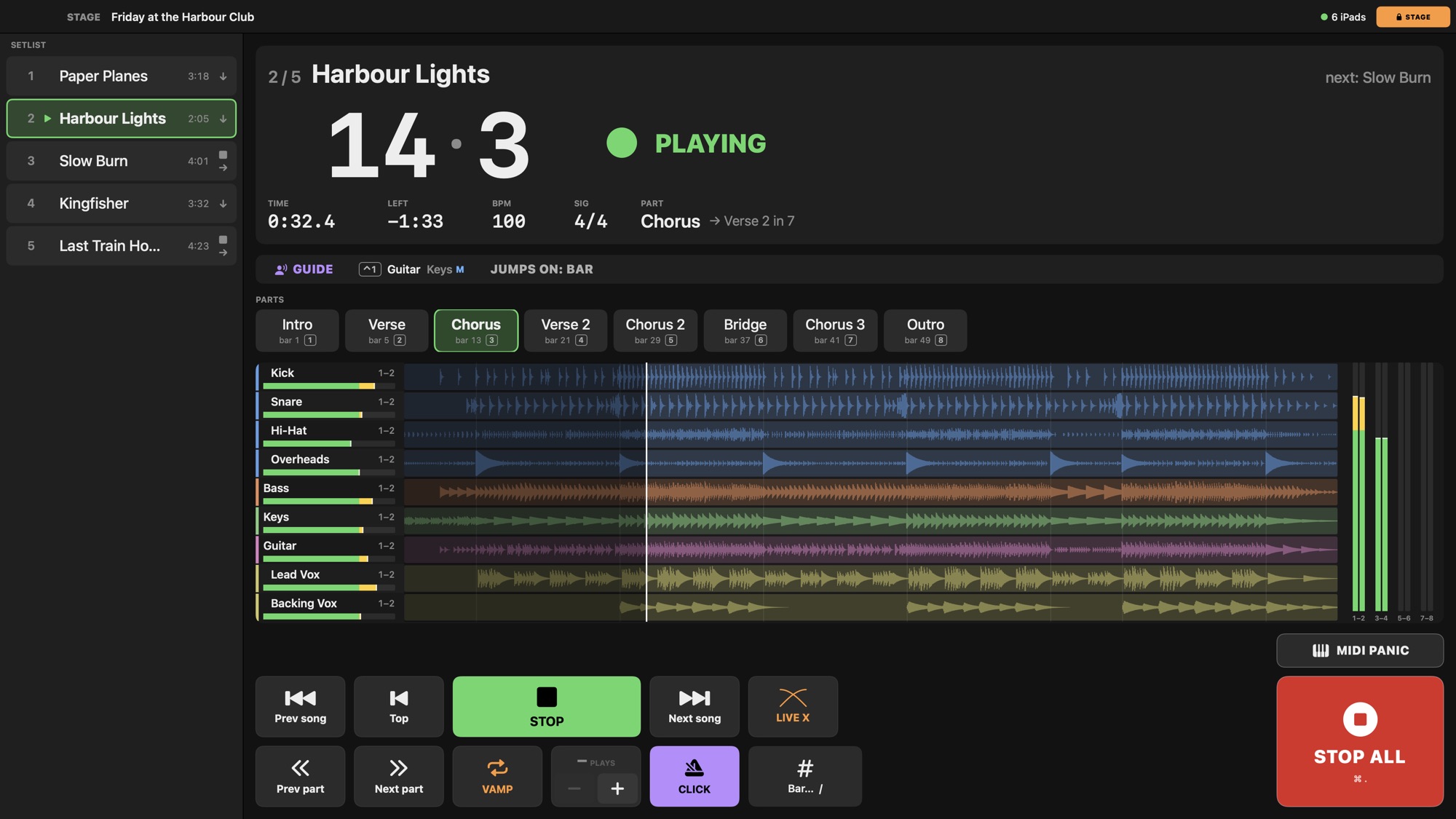
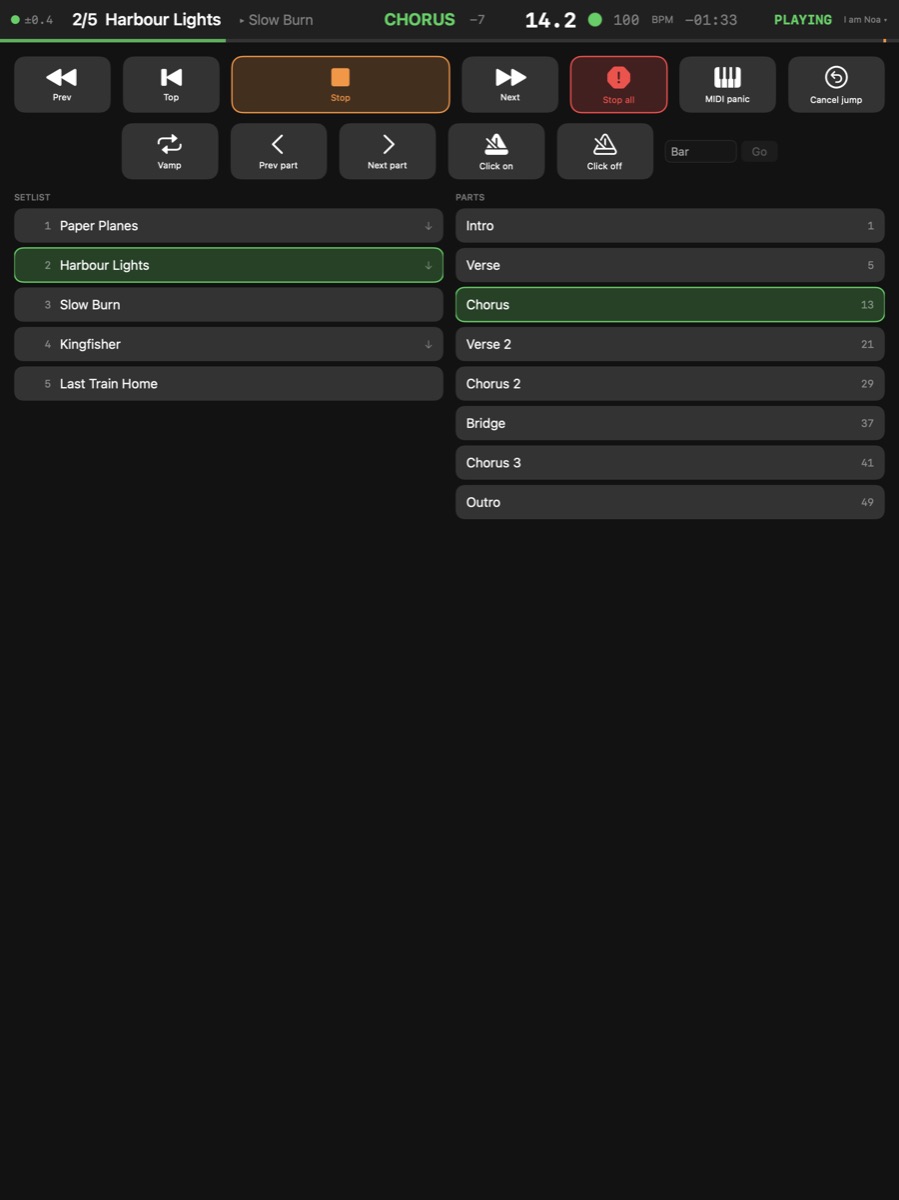
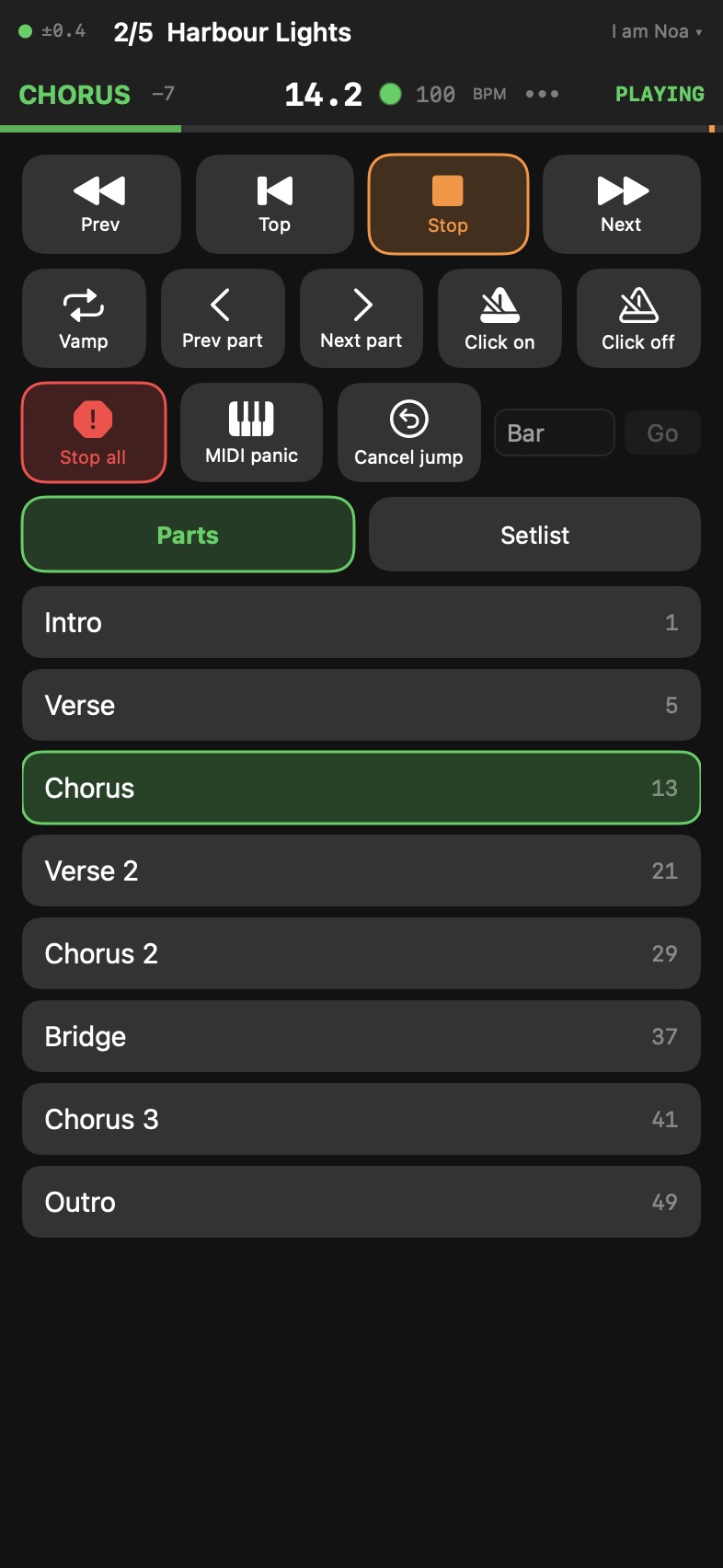
The stage page: the song, the bar and beat in large type, the parts as buttons, every stem with its meter, Stop All in the corner

The stage page

One key turns the Mac into a stage page: every edit locked, the bar and beat large, the parts a tap away, and a Stop All that cuts the sound and the MIDI — away from Play, in the corner.

More

Enter / Leave Stage View ▸ Enter Stage · ⇧⌘P — The show's own page: big buttons, the setlist and the parts, STOP ALL — and nothing can be edited. Leave it the same way (the menu reads Leave Stage there; the lit STAGE pill does it too).

Stop All Transport ▸ Stop All · ⌘. — Stops the transport and a count-in, cancels a pending jump, switches the vamp and the cycle off, and sends the MIDI panic — All Sound Off, All Notes Off and Sustain Off on every channel — to every MIDI output in use.

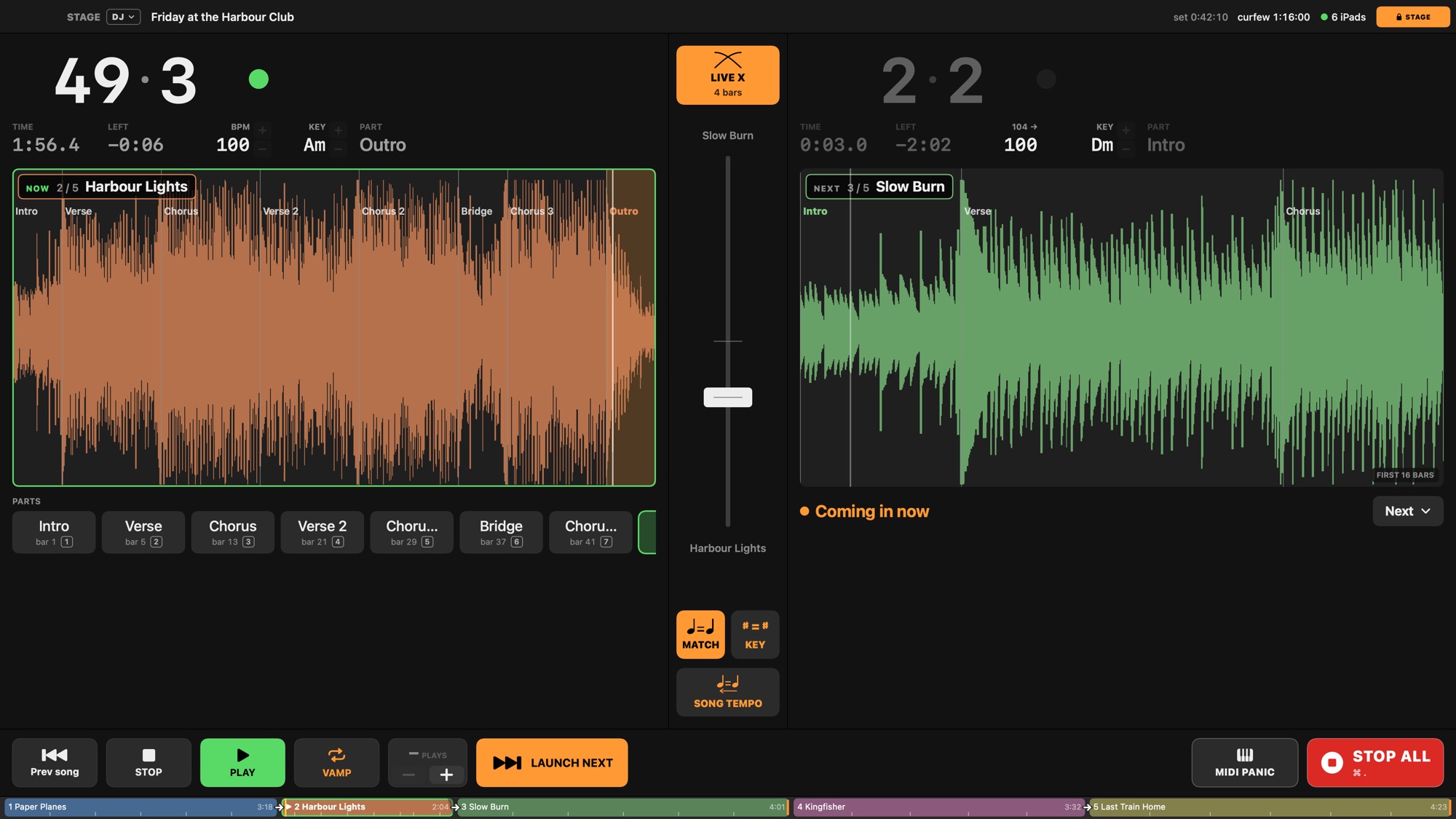
The DJ stage page: the song playing and the song coming in on two decks, the crossfade fader between them, Match tempo and Match key lit

The DJ page

Two decks and a crossfade fader: launch the next song on the bar, ride the crossfade by hand or from a MIDI fader, nudge the tempo, change the key while it plays.

More

Match Tempo Setlist ▸ Match Tempo — On a song that goes on into another: the next song, reached from this one, plays at this song's tempo at its end; started on its own it plays at its own. On one of several selected songs: every selected song. From the Setlist menu: the selected songs, else the song shown.

Nudge Tempo Up Transport ▸ Nudge Tempo Up — The song playing goes 1 BPM faster from its next beat line — a DJ's pitch fader without the pitch: the stems are stretched live (good, not a prepared render's quality), the click, the LCD, sync out and the iPads follow. Presses before the beat arrives add up. The DJ page's + does it, ⇧ for 0.1 BPM. Lasts until the song stops; Back to Song Tempo Now drifts back to the song's own tempo.

Key Up Transport ▸ Key Up — The song playing goes a semitone up from its next beat line — the stems stretched live at the new pitch (good, not a prepared render's quality); drums, percussion, click and guide stay put, as Transpose leaves them. The chord charts, the DJ page and the iPads show the new key. Presses before the beat arrives add up. The DJ page's + beside KEY does it. When the song stops, the change stays in its Transpose (⌘Z takes it back). The next song's key is set on the NEXT deck.

The spoken guide

A voice calls the next part a bar ahead — "Chorus", "Bridge" — in the drummer's ears with the click, never in the house.

More

Click Transport ▸ Click · K — Switches the click on or off. It plays on the click output chosen in Show Settings › Audio (the drummer's ears on this rig).

Count-in Song ▸ Count-in ▸ Count-in · ⇧K — Clicks the chosen number of bars before the song starts, when it plays from the top (and before a gapless chain into it). A click switches it on or off; a right-click picks the bars.

Spoken Guide Transport ▸ Spoken Guide · ⇧⌘K — A voice says each part's name a bar before it starts, its first sound on the beat, and counts the count-in aloud — on the guide's output (Show Settings › Audio › Guide: with the click by default). What it says is where the music goes: a vamped part's own name on every pass but the last, a part's jump's destination.

Sound check

Every output in turn — pink noise, a 1 kHz tone at −18 dBFS, then the guide's voice saying "Kick, outputs 3 and 4" — on that output alone, its Mixer strip lit.

More

Sound Check Band ▸ Sound Check… — Opens the Sound Check panel and starts it: every output the song shown uses, in order — the click's, the guide's when it has its own, then each group and track as the Mixer lists them. On each, a second of pink noise and a second of a 1 kHz tone at −18 dBFS on its channels alone, then the spoken guide's voice saying its name and outputs ("Kick, outputs 3 and 4"); its Mixer strip lit meanwhile, "Sound check: Kick" on the band's screens. It goes on to the next output by itself (the panel's Go on by itself), and ends after the last. An output the interface does not have is listed with a dot and skipped. Not while playing: Play ends it. From the stage page too (SOUND CHECK under the setlist).

Jumps that keep the pulse

Jump to a part or a song from a key, a button or a footswitch: it fires on the next bar line, and every screen on stage goes with it.

More

Go to Part Transport ▸ Part ▸ Go to Part — Jumps to the part's start — while playing, on the next Quantize line so the pulse never breaks. The keys 1 … 0 and ⌥1 … ⌥0 jump to parts 1–20.

Cancel Jump Transport ▸ Cancel Jump · ⎋ — Cancels the jump waiting for its Quantize line — in the song or into another — and the music runs on: the grey line and the alerts go away, nothing returns to an earlier place. A drag you are holding is put back first; an open entry, menu or dialog takes the key before it. Not for a part's At End, an action or a loop: Stop is their off switch.

Vamps and repeats

Loop the chorus until the singer nods, or for a count you change while it runs — "VAMP 2 of 4" on every screen.

More

Vamp Transport ▸ Vamp ▸ Vamp · V — Loops the part the song is in until you switch it off — or for a number of plays. V again ends it at the end of the play it is in; the song then runs on.

One More Play Transport ▸ Vamp ▸ One More Play · ] — Adds a play to the vamp or repeat in force (from ∞: one more after this one; with none: vamps this part twice).

Layouts

The window for the job: Show for the gig, DJ for a set, Edit for building at the desk — or your own, saved with the show.

Help & Tips

Point at anything and a small pane names it, says what its click and drag do, and gives its key.

More

Help & Tips View ▸ Help & Tips · ? — This pane: what the pointer is over and what it does, its key and its tricks. It sits at the bottom of the left column, or floats at the window's corner while that column is hidden.

Messages to the band

Send a short message to every screen on stage — "Next: Yaale, no intro" — and a note per player per song, shown when the song starts.

More

Message Band ▸ Message… · ⌥M — Opens a panel to type a line or pick one of the show's presets (its Presets ▸ Edit Presets… edits them, kept in the show) and send it to every player or to one. It appears big over the display on the iPads and on the Screens pane's tiles until you clear it (Band ▸ Clear Message) or a player taps it away on their iPad.

Note for the Band Band ▸ Note for the Band… — Opens the song's note for the band — for everyone, or for one player — on the Setlist menu's song (the one selected, else the one shown): shown on the players' screens at the song's start and on a tap, on the Screens pane's tiles and on the set sheet. The Song inspector's NOTES fold holds the same.

The set clock

The time of day, the time since the set began, the time left and a curfew, on the Mac and on the band's screens.

More

Reset Set Clock Transport ▸ Reset Set Clock — The set clock (the time since the set started, on the LCD and the band) starts with the first play after the show opens. This starts it over: the next play is the start of the set.


The master tracks

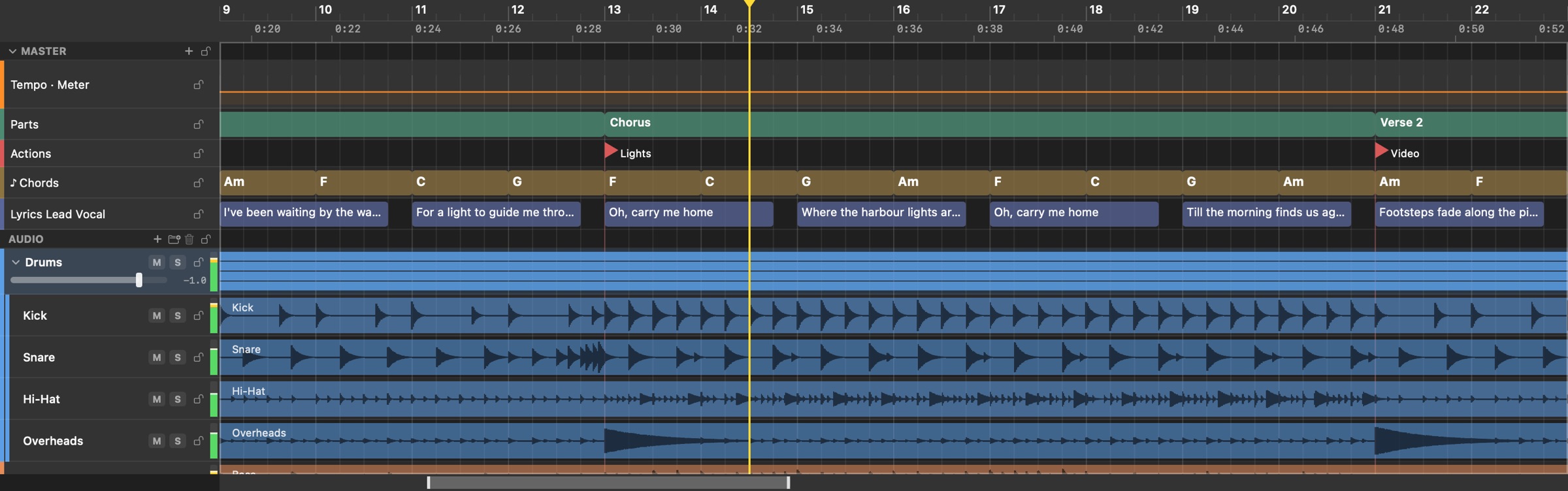
Above the stems, every song carries its own master tracks — the tempo and meter, the parts, the actions, the chords and the lyrics — on the same timeline, edited like regions, and played to every screen on stage. A DAW has a marker track; these run the show.

The master tracks of Harbour Lights, bars 9 to 22: the tempo, the parts (the Verse into the Chorus into Verse 2), the actions (a program change to the lighting desk at the Chorus, a video cue at Verse 2), a chord a bar, the lead vocal's lines — over the drums
The master tracks over the stems: parts, actions, chords and lyrics on the song's own timeline.
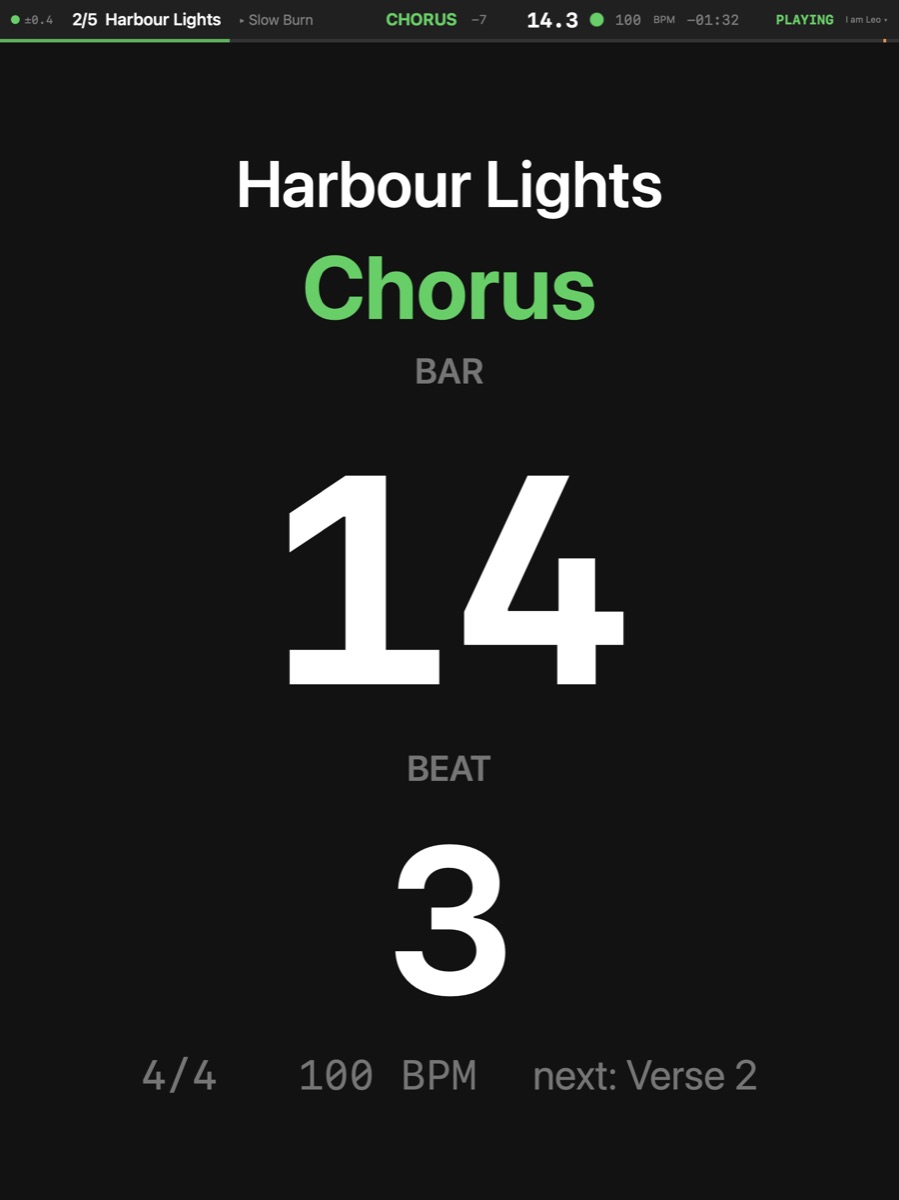
The drummer's iPad: the song, the part playing and the bar and beat in giant type
Drums · the part, the bar, the beat

Parts

The song's form — Intro, Verse, Chorus, Bridge — as regions on a lane of its own, and every part a place to go:

  • Jump to a part from a key (1–0 on the stage page), a button, a footswitch or the band leader's iPad. It fires on the next bar, beat or part end — the Quantize you set — and every screen goes with it.
  • Vamp a part until the singer nods, or ×2, ×4, ×8 — a count you change while it runs, "VAMP 2 of 4" on every screen.
  • A part's end can jump — to another part, to the next song, or stop — once per run; a PDF part's pages read ahead through the jump.
  • The spoken guide calls each part a bar ahead, and the LCD shows the part coming and the bars to it.
  • Imported from a MIDI file's markers, or tapped into place while the song plays.
More

Go to Part Transport ▸ Part ▸ Go to Part — Jumps to the part's start — while playing, on the next Quantize line so the pulse never breaks. The keys 1 … 0 and ⌥1 … ⌥0 jump to parts 1–20.

Vamp Transport ▸ Vamp ▸ Vamp · V — Loops the part the song is in until you switch it off — or for a number of plays. V again ends it at the end of the play it is in; the song then runs on.

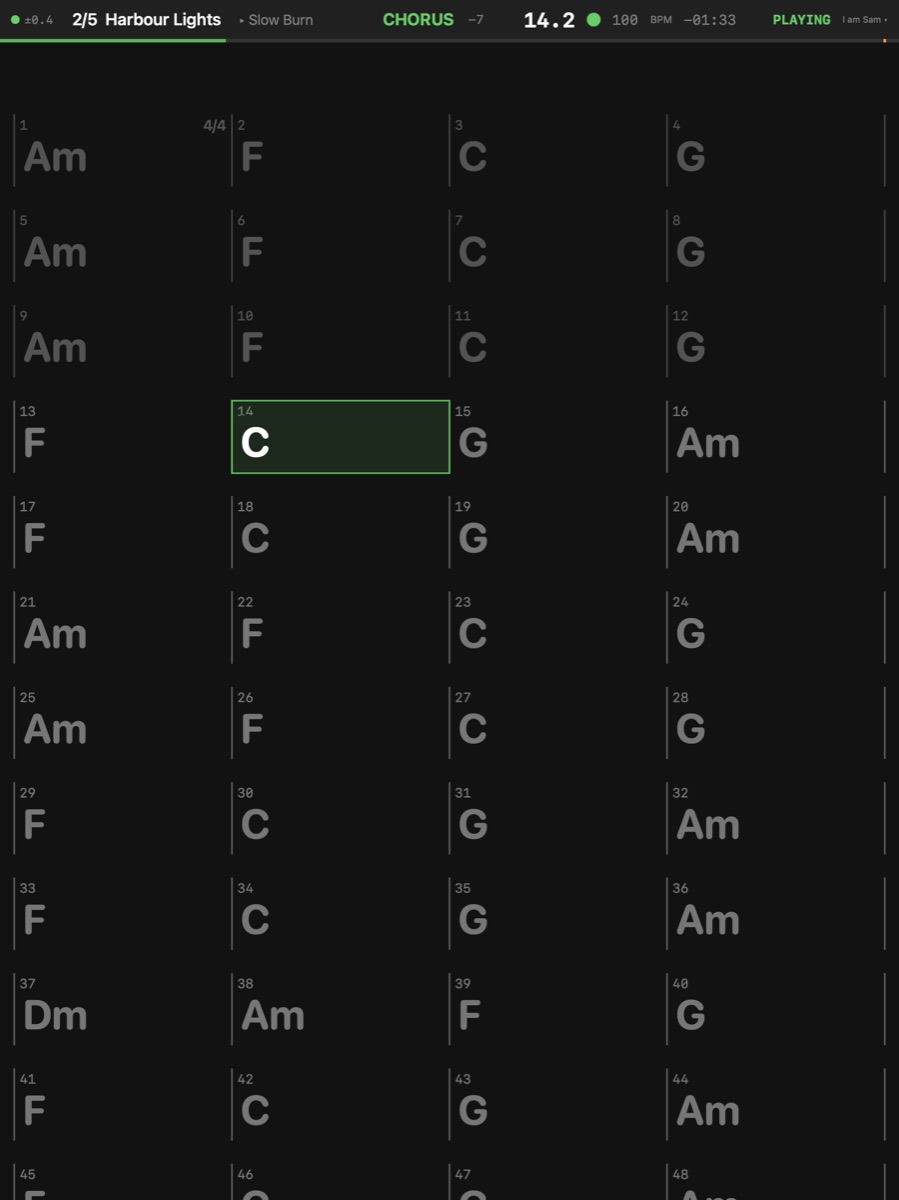
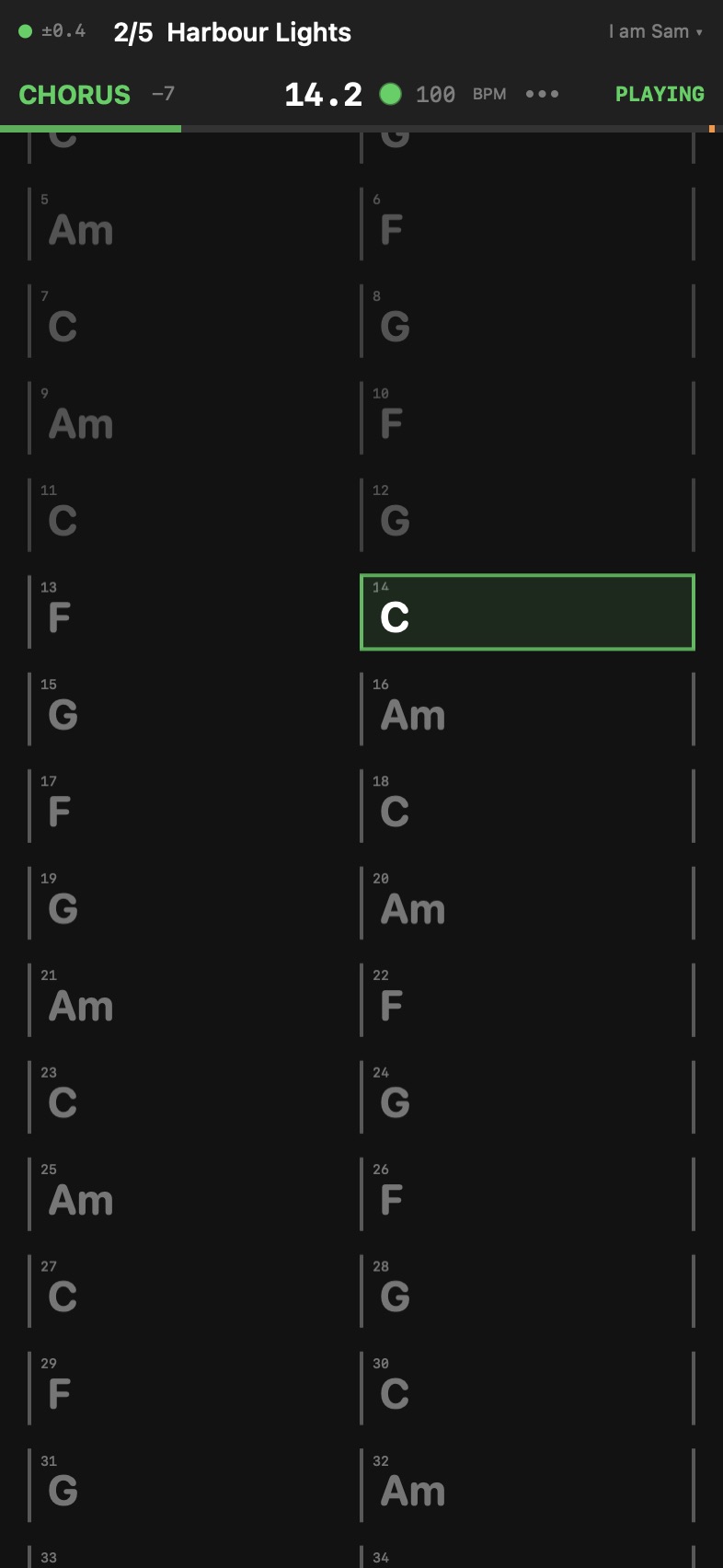
The guitarist's iPad: a chord chart four bars a row, the bar playing framed
Guitar · the chord chart

Chords

One master chord track per song — and a second one for the one part that reads its own chords:

  • Written your way: typed in place, played in from a MIDI keyboard (it sounds as an electric piano while you record), or read from a MusicXML or PDF part.
  • Transposed with the song and spelled by its key: E7/G♯ a tone down is D7/F♯, not G♭.
  • Read per player: in a B♭, E♭ or F instrument's key, with a capo from 1 to 7, or as Nashville numbers.
  • On stage: a chart four bars a row, the chords above the lyrics, the key on the set sheet.
More

Record Chords from MIDI Song ▸ Lanes ▸ Record Chords from MIDI — While on (the edit bar's keys lit red), a chord played on the keyboard of Settings › MIDI lands where its first note sounded (a selected chord is renamed instead), and the keys sound as an electric piano.

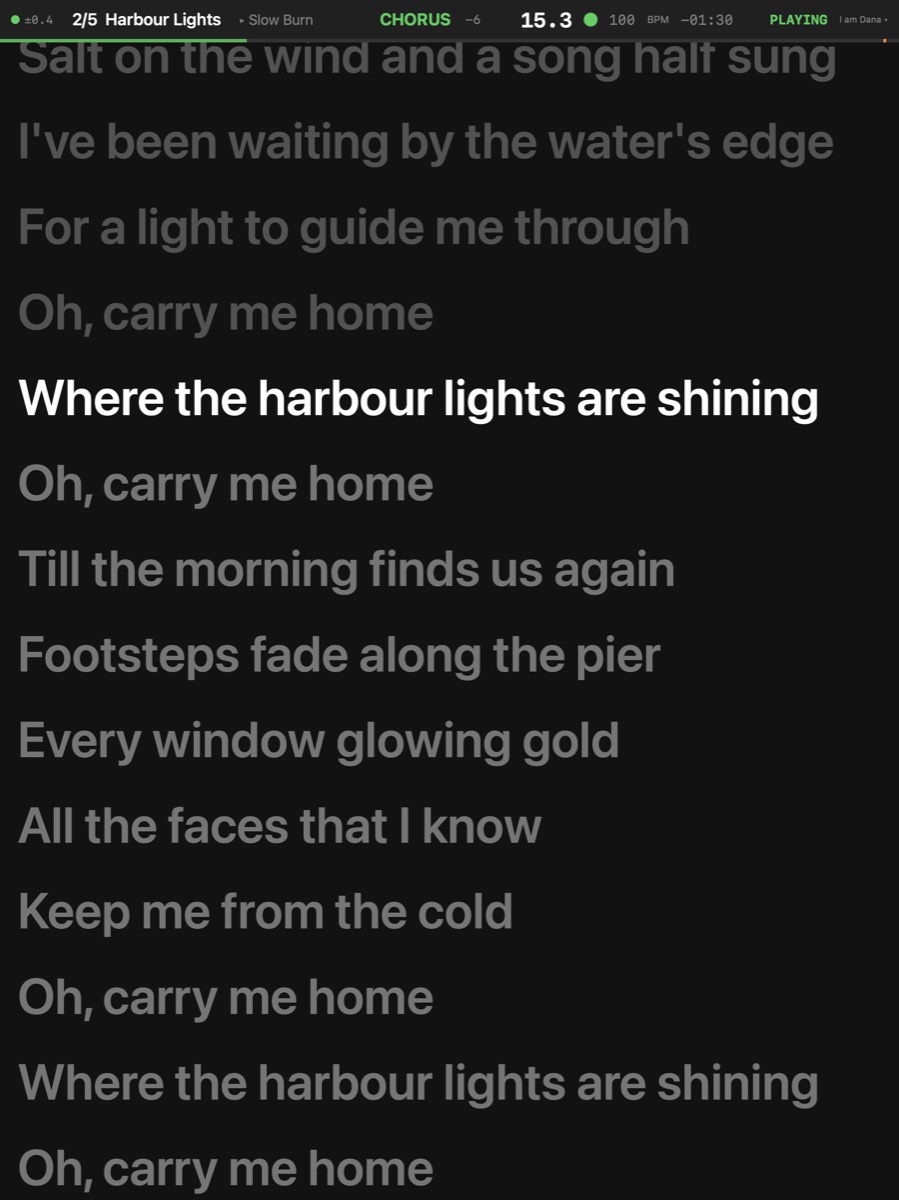
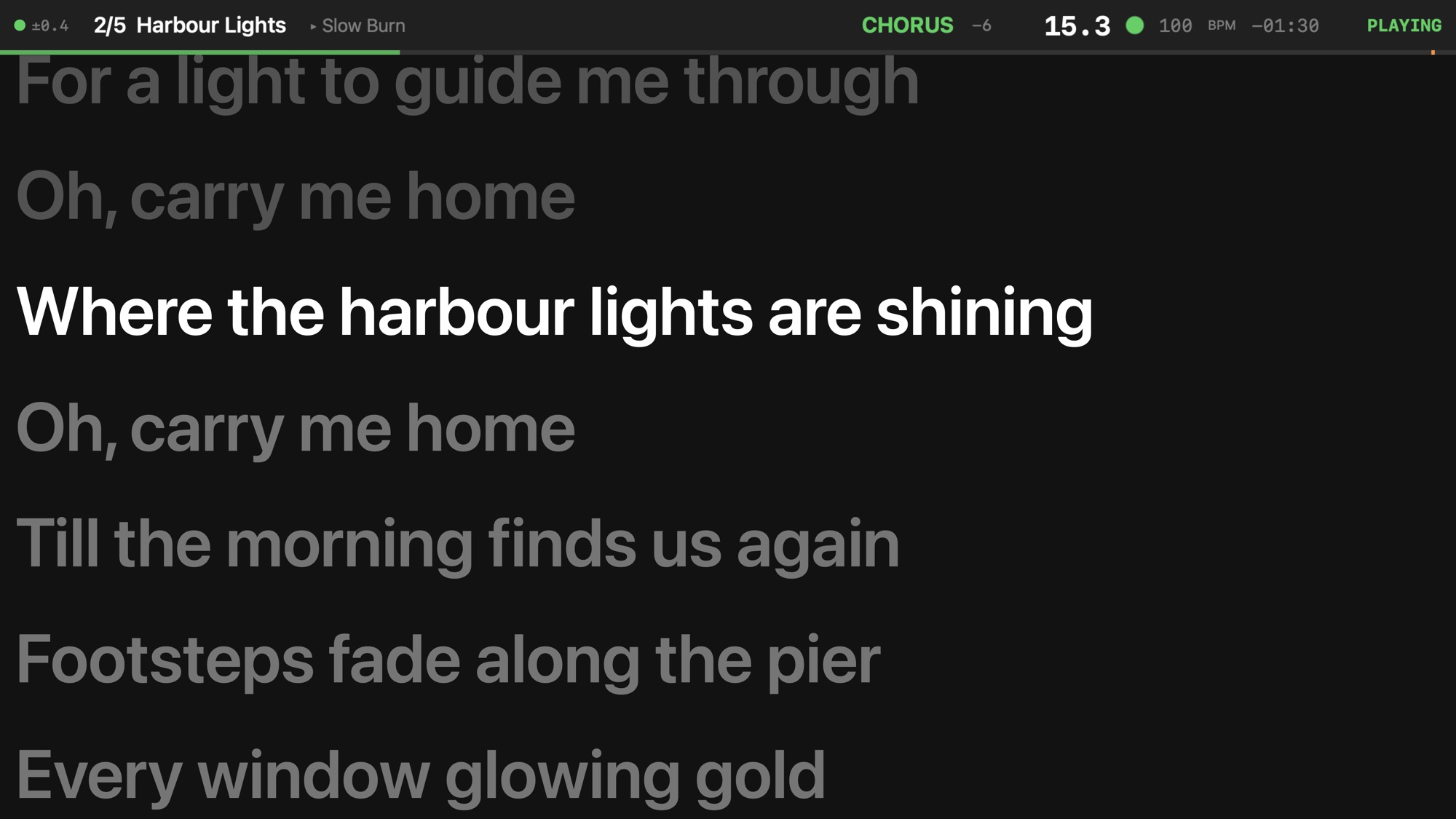
The singer's iPad: the lyric prompter, the line being sung lit, the lines around it dimmed
Voice · the prompter

Lyrics

Several lyric tracks per song — the lead and the backing vocals each their own — every line a region on the timeline:

  • Found online: every match from LRCLIB with a preview, already timed.
  • Tapped into place: paste the words, play the song, press Tab as each line is sung; the lines after it move along.
  • Imported: an LRC file (and out again), the lyrics of a MIDI file, a text file dropped on the lane.
  • A colour per line for who sings it — the harmony, the second singer.
  • On stage: the prompter, the chords above the words, an Apple TV for the cast — the line being sung lit wherever the song jumps.
More

Find Lyrics Online Song ▸ Lanes ▸ Find Lyrics Online… — Searches LRCLIB for the song's lyrics; a synced match lands at its times.

Tap to Place Song ▸ Lanes ▸ Tap to Place · ⇧⇥ — A mode: while it is on (the edit bar's hand lit red), Tab puts the selected chord, lyric line or part where you hear it and selects the next; the one Tab places next has a red ring. Off, Tab does nothing to the song. Off at launch and on stage.

13          midi pc 1 4 // Lights
21          osc 10.0.0.30:53000 /cue/V2/start // Video
33          display Leo chart
37          repeat bar 37 - 40 x2
41          vamp Chorus 3 x2
45          midi cc 2 64 127 on Nord Stage
53          stop goto bar 1

Actions

The song's script, one marker each, typed as a line or set in a form:

  • The transport: stop, go to a bar, a part or a song, the next song, stop and wait at a bar — on the marker's sample.
  • Loops: vamp a part ×N or until cued, repeat a range of bars ×N, vamp off.
  • MIDI: a program change, a controller or a note to a keyboard or a lighting desk, sent with the sync clock, to the show's port or one of its own.
  • OSC: a cue to a lighting desk or a media server, by address and arguments.
  • The band's screens: switch one player — or all — to another display for a passage.
More

MIDI Panic Transport ▸ MIDI Panic · ⌥⌘. — Sends All Sound Off, All Notes Off and Sustain Off on all 16 channels to every MIDI output in use: the sync destination, the actions' own output and every output an action names. The transport, the vamp and the cycle keep going — a stuck note on a keyboard goes quiet and the song plays on. Stop All does this and stops everything else. No key by default: bind one, or a pedal, in Key Commands.


The band's screens

The singer: the lyric prompter, the line being sung lit, the rest dimmed
Lyrics
The guitarist: a chord chart in bars of four, the bar playing framed
Chord chart
The keyboard player: chords above the words they belong to
Chords and lyrics
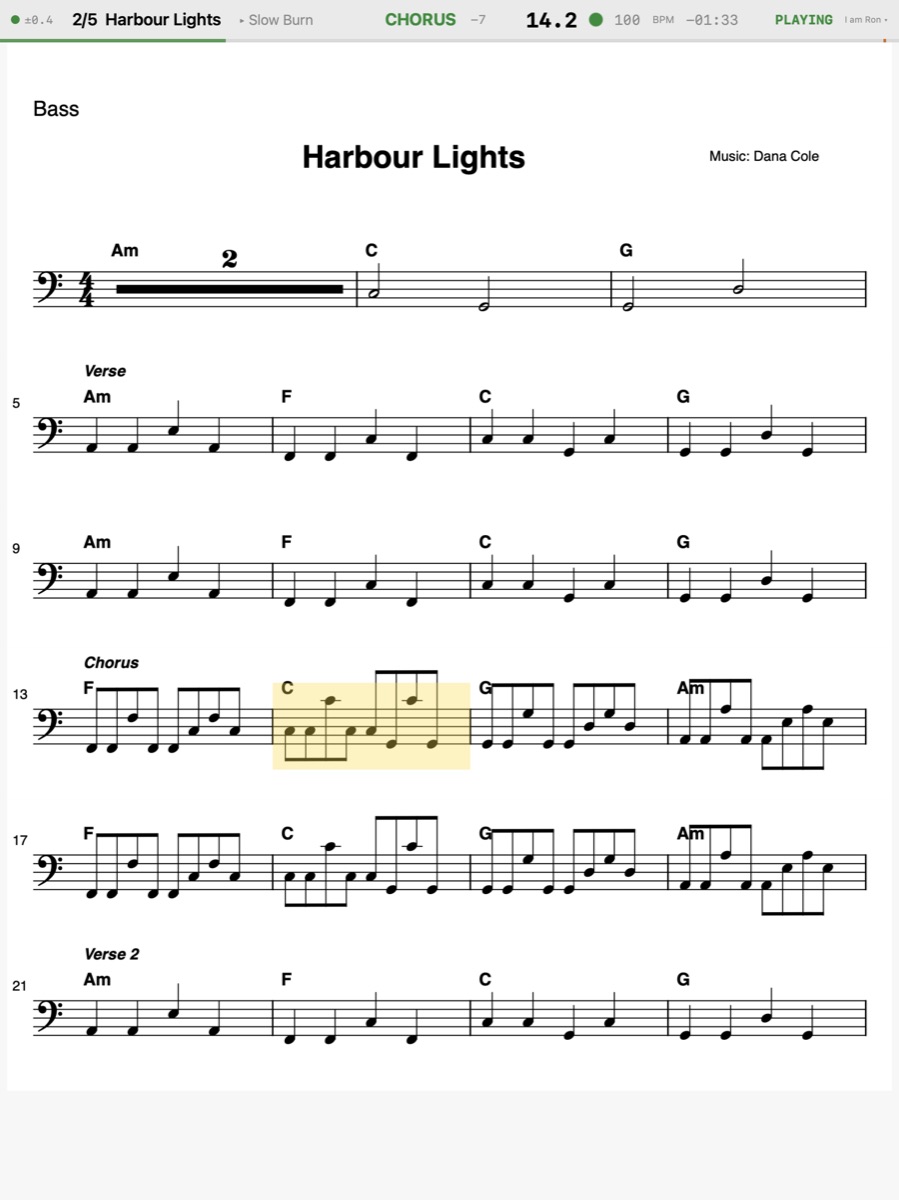
The bassist: the PDF part as printed, the bar playing shaded
Score
The drummer: the song, the part, the bar and the beat, readable from across the stage
Giant bar and beat
The band leader: the remote — transport, setlist, parts, vamp, click
Remote

Every iPad, its own display

BarBeatCue Satellite makes an iPad a player's stand — a chord chart, a lyric prompter, chords over the words, the part, a giant bar and beat, or the band leader's remote — on the Mac's clock over your own WiFi. Who sees what is set on the Mac and saved with the show; a song, or an action mid-song, can switch a player's display.

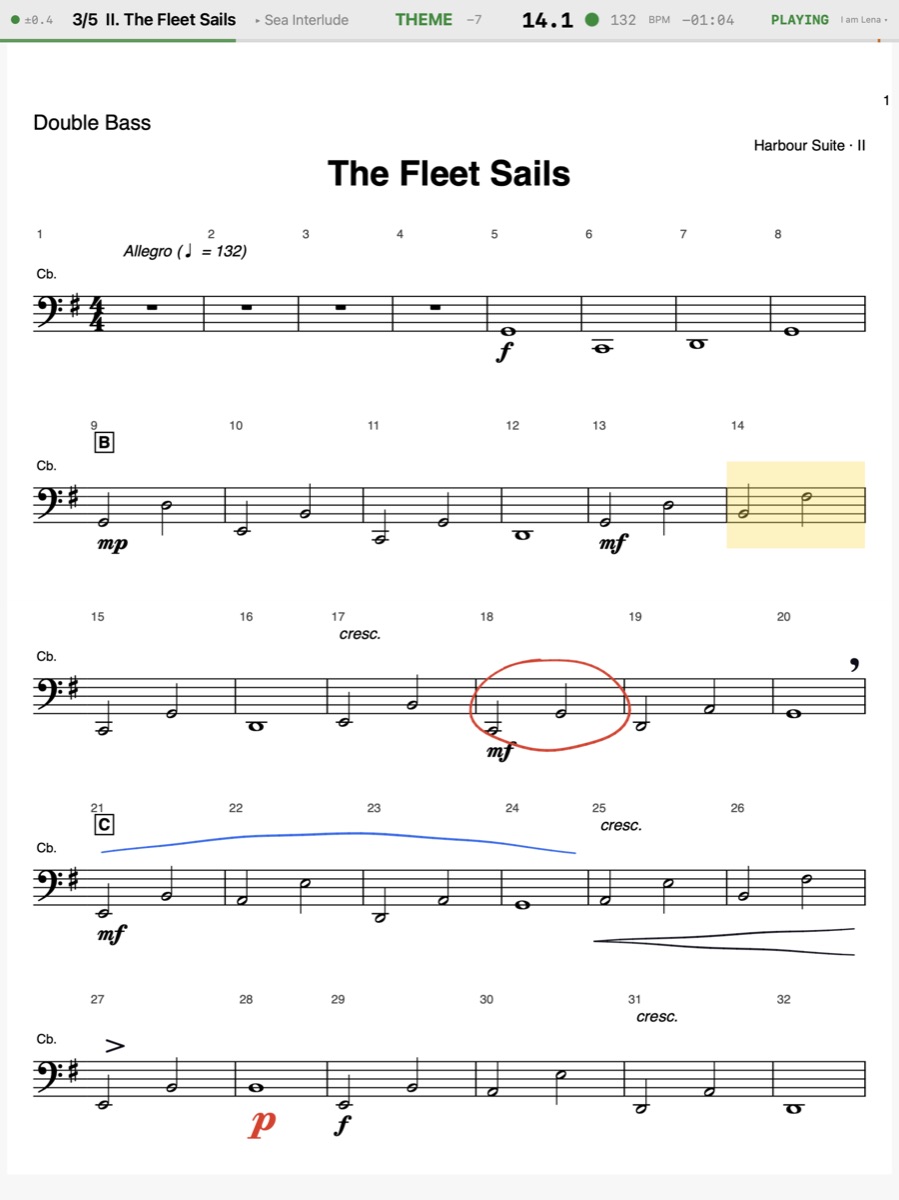
The double bassist's PDF part with their own marks: a red ring round a bar, a pencilled crescendo, a blue phrase over the C section, a breath, an accent and a piano from the music font
Double bass · marked

Your marks on your part

The Apple Pencil on the printed part: a pen in black, red and blue, and stamps from the music font — breaths, dynamics, accents, bowings, fingerings. Each mark is held by its bar, so it is back in its place on every page turn, upright or on its side, at any zoom. Only the player who drew it sees it. The Mac shows each player's marks over their part, so the one who builds the show can see them and tidy them up.

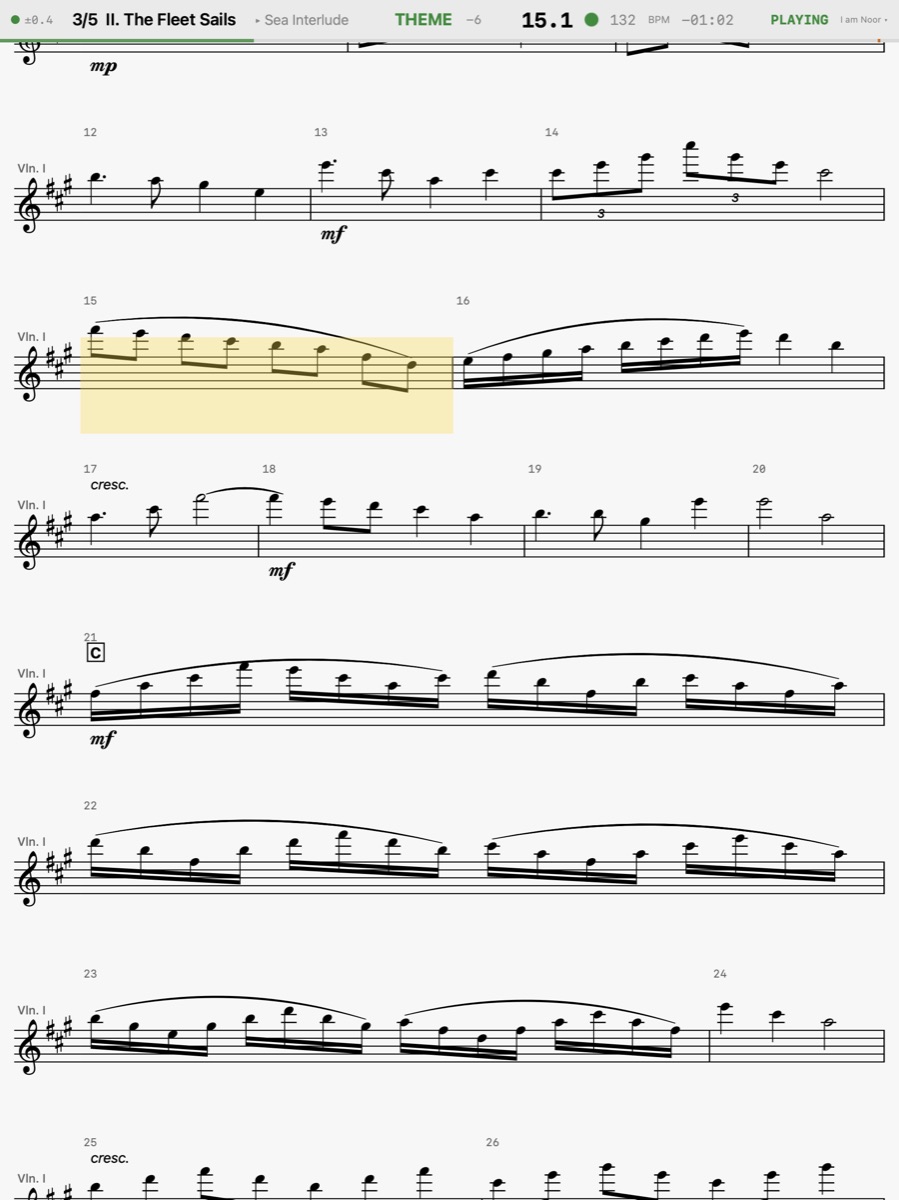
The first violins' MusicXML part with the song played a tone up: the part re-spelled in A major, the bar playing shaded, the page scrolling
Violin I · a tone up

A part that scrolls, in the key you play

A MusicXML part is engraved by the app at the width of the screen and scrolls with the song — no page turns, the bar playing shaded — or underlined, its bar line lit, the rest of the page dimmed: each player's choice. So is the hand it is written in: engraved, a light engraved face, or jazz — the handwritten hand of a Real Book chart. Play the song a tone up and the part is re-spelled on the fly; a chord chart reads in the instrument's key or with a capo. A PDF part turns its own pages in playing order — through repeats, jumps and into the next song. A song that holds both for one instrument shows each player the one they pick, PDF or XML. Its bars are read off the page — from Dorico or MuseScore, multi-bar rests and printed bar numbers included — and where a page fools the reading, Correct Bars fixes it on the page itself.

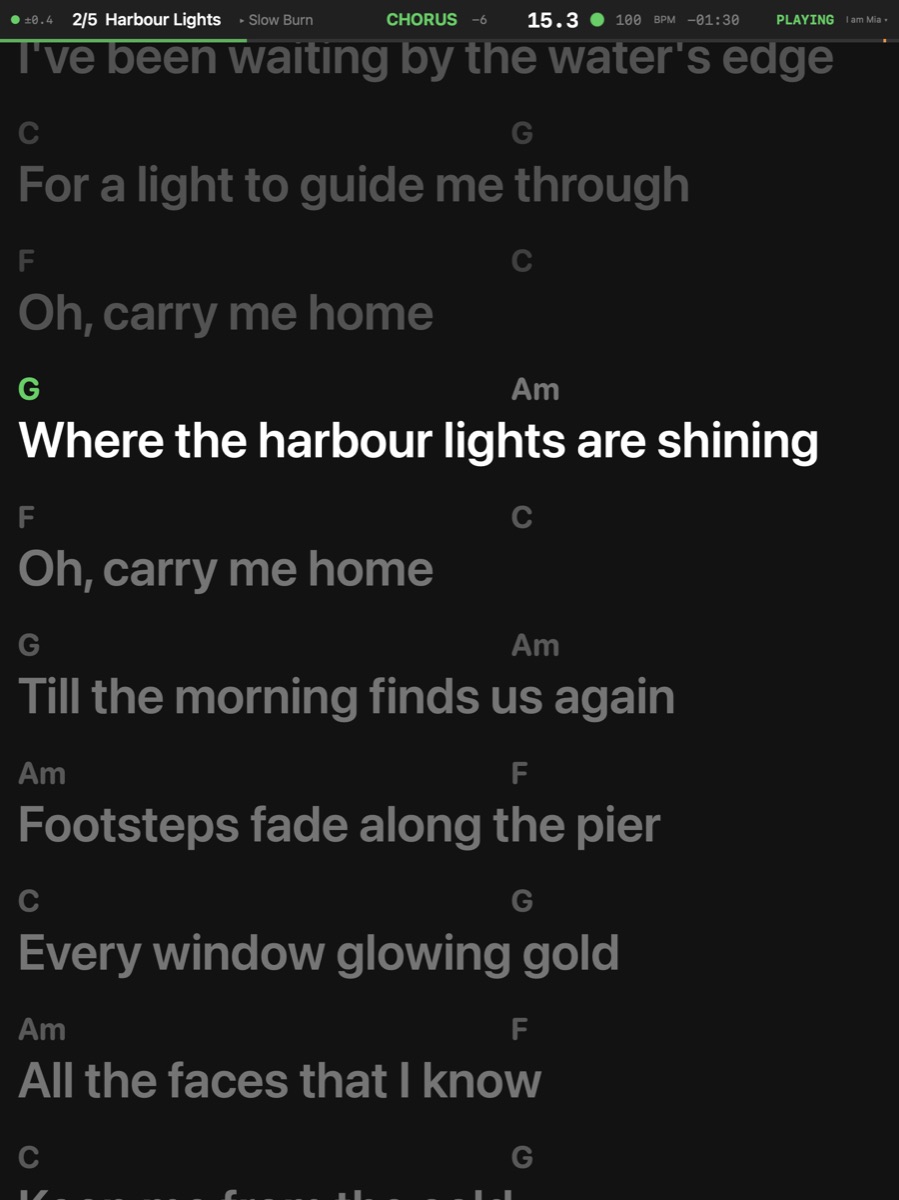
The keyboard player's iPad: chords above the syllables they fall on, the line being sung lit
Keys · chords and lyrics

Chords above the words

The master chords placed over the syllable they fall on, the line being sung lit — for the keyboard player who sings the harmony, or the guitarist who needs the words.

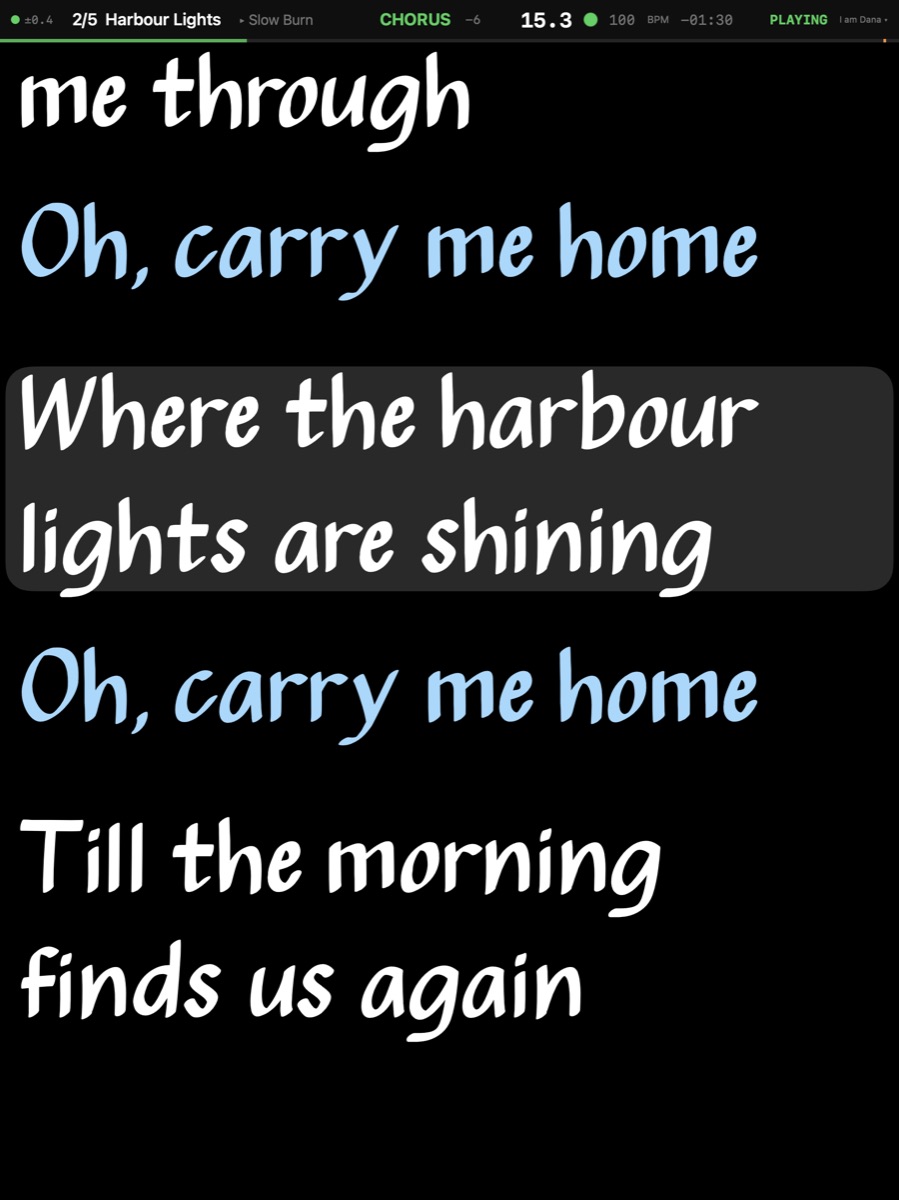
The singer's prompter in their own look: the Real Book face on black, the harmony lines in ice blue, the current line under a bar, pinched to twice the size
Voice · Real Book, pinched to 2×

A look per player, and a pinch

Each player has their own face (Real Book among them), colours, a black background for an LED wall or paper for daylight, the current line's mark, a mirror for a teleprompter glass, Nashville numbers. A line can carry its own colour: the harmony, the second singer. A pinch makes the prompter or the chart larger, and the size is saved on the Mac with the show.

Manual mode

A player can leave the song for a moment — turn pages, scroll ahead — while the top band keeps the band's place, and come back with one tap on ▶ Follow.

The remote, with a passphrase

The band leader's iPad plays, stops, changes songs and parts, vamps and clicks — once it has proved the rig's passphrase to the Mac.

The guitarist's chord chart on an iPhone: two bars a row under a two-row band
A chart
The band leader's remote on an iPhone: transport, parts and setlist
The remote

The iPhone

The same app on an iPhone, upright or on its side: a chart two bars a row, a part zoomed with a pinch — for a player who travels light, or as a pocket remote.

An Apple TV on a large screen: the lyrics for the whole stage, the line being sung lit

Apple TV screens

BarBeatCue Display puts the lyrics, a chart or the giant bar and beat on the big screen for the whole stage — a choir, a cast, a pit — readable from three metres, and drawn early by as much as the TV set lags.

More

Add Screen Band ▸ Add Screen — Adds a Screen to the show: a player that is an LCD on the stage, shown by BarBeatCue Display on an Apple TV. It shows the lyrics prompter, the chords + lyrics, the chart or the giant readout — never a score — in large type; pick it on the Apple TV by its name.

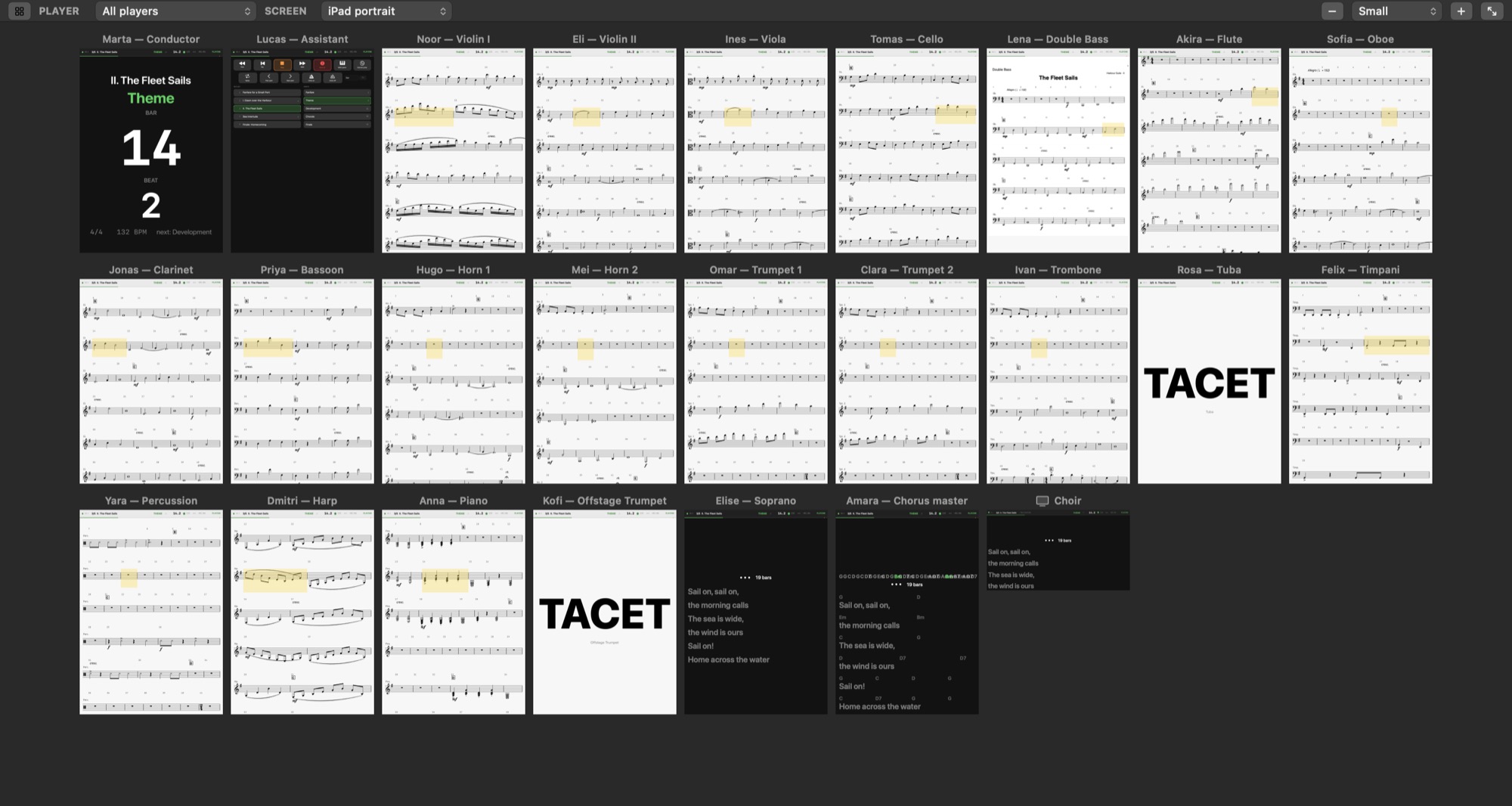
The Screens pane with an orchestra: twenty-five players' screens side by side — parts on MusicXML and PDF, TACET for the tuba, the conductor's giant bar and beat, the choir's Apple TV

Who sees what, from the Mac

The Mac's Screens pane shows what every player sees, as their device draws it: here an orchestra of 24 and one Apple TV, the tuba and the offstage trumpet TACET because their part is not in this movement. Any iPad picks who it is.


The rig

Timecode and clock out

MIDI Clock, MTC and LTC out for lighting and video, with an offset for the desk downstream.

Following a house system

Follow LTC or MTC with a soft chase — locked at the start, never varispeeding your audio — or a show where each song has its own start time.

More

Sync In Song ▸ Sync ▸ Sync In — The song follows a master's timecode — LTC on an audio input, or MTC over MIDI —: the transport starts, stops and jumps with it. Green: locked; orange: waiting or catching up. A click switches it off, or back to the source it had; a right-click picks the source.

LTC to a file

Export a song's or the whole show's timecode as an audio file for another system's timeline.

More

Export LTC Audio File ▸ Export ▸ LTC Audio… — Writes LTC — the timecode BarBeatCue's LTC out sends, sample for sample — as WAV files for outside gear: this song, every song a file each, or the whole setlist as one file (with the Continuous timecode). Each song's code is where the setlist's Timecode puts it, its count-in rendered before it as pre-roll code (a song without one gets two seconds to lock on). Put the files on an audio track in your DAW routed to BarBeatCue's LTC input and the DAW becomes the master: each clip starts its song. Named with the song's number, title, rate and first timecode.

MIDI from the timeline

Program changes to keyboards, lighting cues, a display switch for a player — actions on a lane that fire on their beat.

More

MIDI Panic Transport ▸ MIDI Panic · ⌥⌘. — Sends All Sound Off, All Notes Off and Sustain Off on all 16 channels to every MIDI output in use: the sync destination, the actions' own output and every output an action names. The transport, the vamp and the cycle keep going — a stuck note on a keyboard goes quiet and the song plays on. Stop All does this and stops everything else. No key by default: bind one, or a pedal, in Key Commands.

Every action on a key or a pedal

Every command can have a key and a MIDI message — footswitch, pad, fader — with MIDI learn, profiles per Mac and per show, and a printable cheat sheet.

More

Key Commands BarBeatCue ▸ Key Commands… · ⌥K — Opens the Key Commands window: every command with its key and MIDI. Double-click a key to give the command another one, click MIDI and press a pedal or a pad to learn it. This Mac's keys are kept on this Mac; a show can add its own on top, saved in its show file.

OSC and Stream Deck

Control the rig over OSC from another app, and from a Stream Deck with the ready-made profiles.


The show file

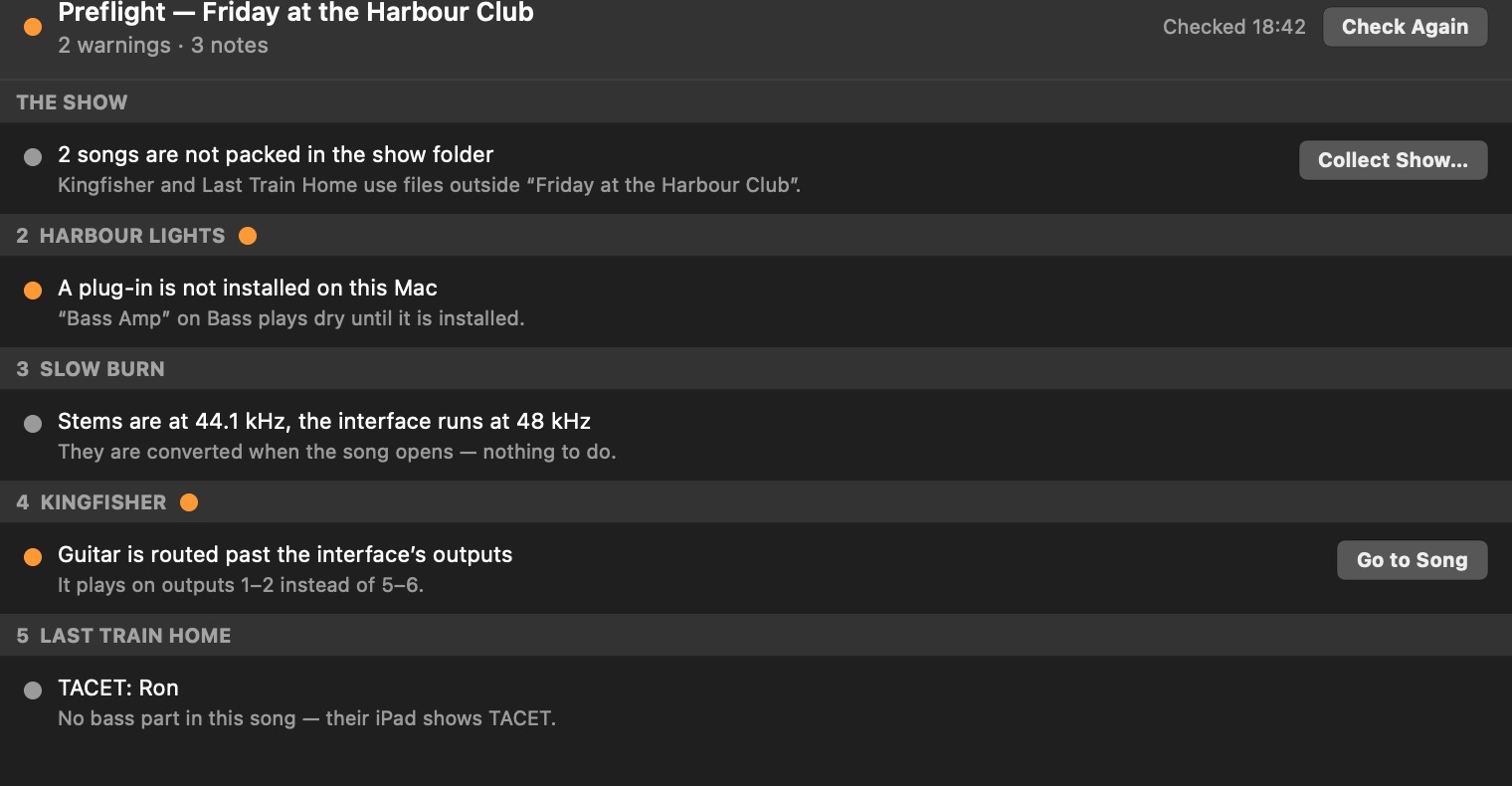
Preflight: a show checked before the gig — a plug-in not installed, a track routed past the interface's outputs, a player with no part in a song

Preflight

Preflight reads the whole show before you walk on — files, sample rates, outputs the interface lacks, plug-ins, MIDI ports, a player with no part in a song — and its Fix buttons go where each one is fixed.

More

Preflight File ▸ Preflight… — Checks every song of the setlist: the song, stem, region and score files there; the stems at the device's rate; the outputs within the device; the plug-ins installed and loading; the MIDI ports the show uses and the MIDI actions' outputs; whose score is missing where (TACET); annotation marks that may have moved after a re-export; the beta's date. Red: fix it before the show; orange: a warning; grey: a note. A Fix button goes where it is fixed. It runs by itself when a setlist opens; on the stage page it opens read-only.

Folders stay folders

A show is a folder — the show file and a folder per song with its stems and parts — that you copy to the stage Mac whole.

Collect, archive, clean up

Gather every file the show uses into its folder, zip it for the road, and move the files no song uses to the Trash.

More

Collect Show File ▸ Collect Show… — Copies every song, stem and score the setlist uses into the show folder, so the folder moves to another Mac as a whole. It says what it will copy and how much first.

Archive Show File ▸ Archive Show… — Collects the show first when something lives outside its folder, then saves the folder as a zip.

Clean Up Show File ▸ Clean Up Show… — Lists every file in the show folder that no song of the setlist uses — a stem taken off a track, a replaced score, an older copy of a song file, a removed song's folder, marks of a player or score that went — with sizes and a check each. Only the ticked ones move, and to the Trash, never deleted: empty it yourself, or use Put Back in Finder. A song folder that is not in the setlist, other kinds of file and the Backups start unticked. Setlists beside this one keep their songs. Preflight says how many files it would list.

Backups and autosave

Every save keeps the last versions of the setlist and the songs; go back to the last save, the version you opened, or any backup.

More

Save Automatically File ▸ Save Automatically — On (the default): every edit is written a moment after you make it. Off: edits wait for Save — a dot in the window's close button says something is unsaved, and you are asked before anything replaces the show.

Revert to a Backup File ▸ Revert To ▸ Backup… — Every save keeps the version before it in the show folder's Backups. Pick the song or the show and a time from the list; the music stops and that version opens.

A library across shows

Songs you play in several shows live once and are shared — or copied into a show that must stand alone.

More

Add from Library File ▸ Add from Library… — Lists every song of every show on this Mac; the ones you pick are added after the song, each shared — the folder stays where it is, and an edit to it is an edit in every show that uses it.

Quick Look and Spotlight

Press Space on a show or a song in the Finder for its set list or its parts; Spotlight finds a show by a song or an instrument.

A set sheet

Print the set list for the stage floor — the songs, their keys and lengths, in type you can read from where you stand.

More

Print Set Sheet Band ▸ Print Set Sheet… · ⌘P — Opens the set sheet's options with Print as the default: the songs in order with key, tempo, length, parts, end action and the players' notes, then the system's print panel. Export Set Sheet… saves the same as a PDF.